 USU CIDI
USU Design Tools Training
1.1: Content Tools
Content tools customize the content of Front, Content, Discussions, and Assignment pages:
- Style content with predefined themes
- Insert boilerplate sections and content
- Duplicate existing content pages
- Apply styles from the Canvas Style Guide, including:
- Accordions and Tabbed content
- Buttons
- Highlights, Alerts, and Emphasis
- Modal windows, Tooltips and Popovers
- Adjust element colors, borders, margins and padding
- Add progress bars
- Add icons containing social media links
- Customize links, headings and lists
- Write objectives and other content supported by Bloom's Revised Taxonomy
Interface
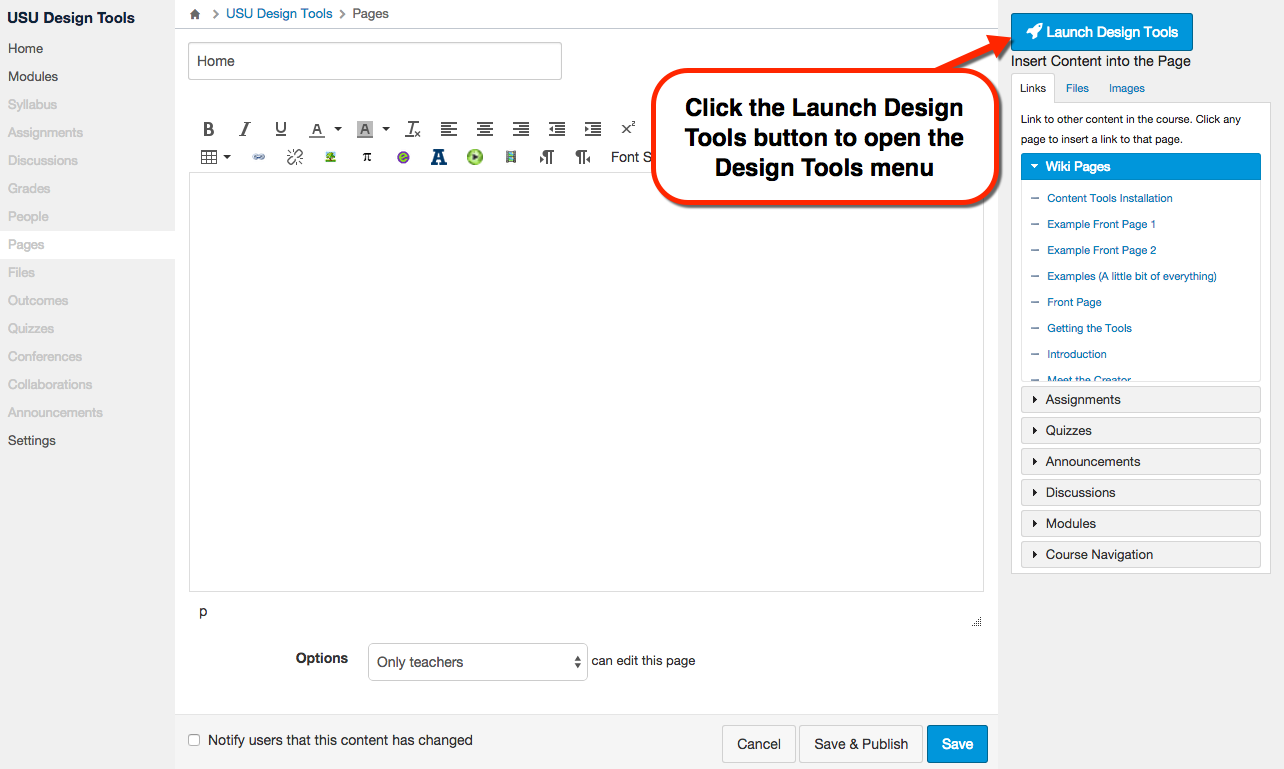
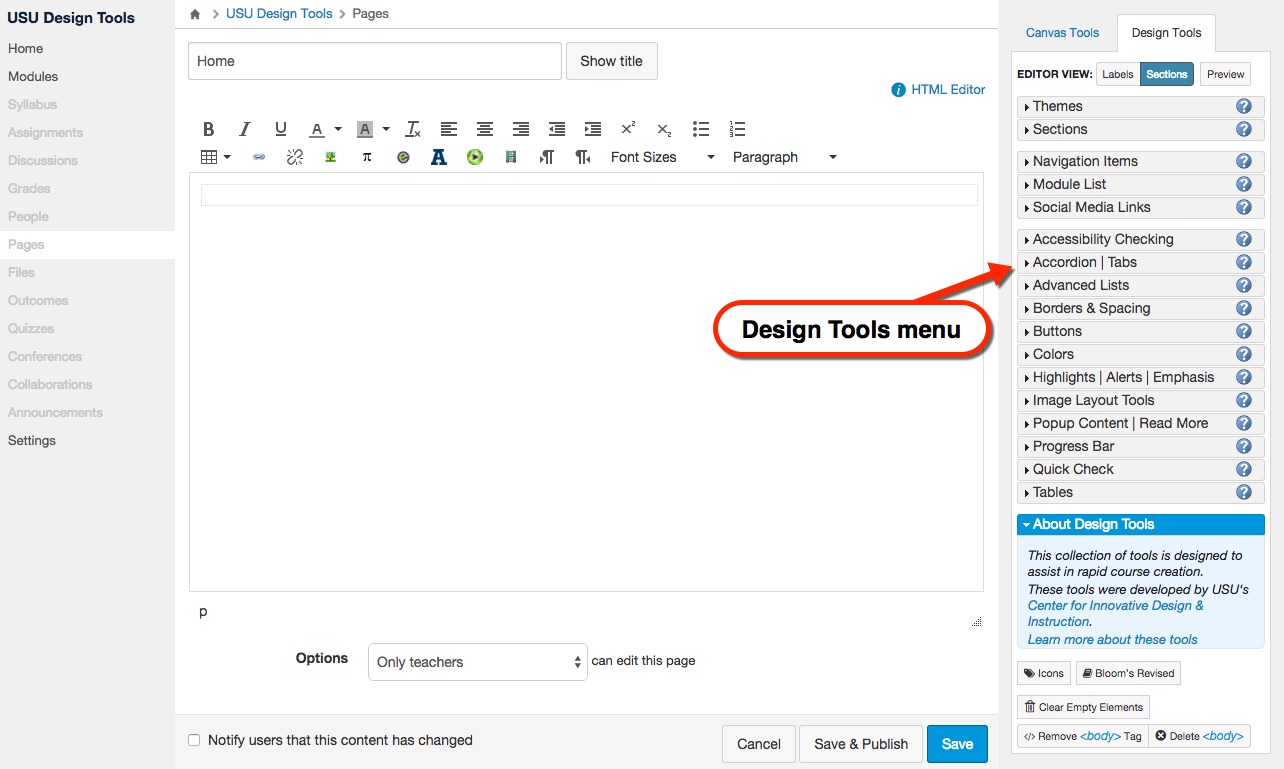
Interface Details
The USU Design Tools menu displays the available tools in an accordion view.
| Element | Description |
|---|---|
| Editor View | Selects the Labels, Sections, or Preview view. |
| Themes | Adds a theme to the page, customizes color, and specifies a custom style sheet. |
| Sections | Adds new and predefined sections to the page. Rearranges sections |
| Navigation Items | Adds predefined navigation items. |
| Module List | Adds links to each of the course modules. |
| Social Media Links | Adds links to social media. |
| Accessibility Checking | Toggles color on or off to help check for content that relies on color for meaning. |
| Accordion/Tabs | Adds an accordion or tabbed widget to the page. |
| Advanced Lists | Adds lists to the page. |
| Borders & Spacing | Applies borders, margins and padding to a selected element. |
| Buttons | Adds buttons and provides customization options for the button. |
| Highlights/Alerts/Emphasis | Adds block alerts or inline emphasis. |
| Image Layout Tools | Modifies the selected image with Float and Width options. |
| Popup Content/Read More | Adds Modals windows, tooltips, and popovers. |
| Progress Bar | Adds a progress bar to a section or page. |
| Quick Check | Adds an ungraded question that gives the student instant feedback. |
| Tables | Adds custom tables to the page. |
The USU Design Tools menu also contains the following buttons:
- Icons – Opens a selection of custom icons.
- Bloom’s Revised – Provides a list of action verbs to insert into the content.
- Clear Empty Elements – Removes extra elements from the page.
- Remove Tag – Removes the formatting tags from a selected element.
- Delete Tab – Deletes the selected element and its contents
For information on using the Custom Content Tools, see Chapter 2: Using the Custom Content Editor.